FOR ANDROID TV • GOOGLE TV • SETUP GUIDE
OnStream for Android TV: Installation, Features, and Setup Guide
OnStream is a third-party Android app promoted for watching movies and TV shows. Using it on a television gives you a larger screen for browsing and playback.
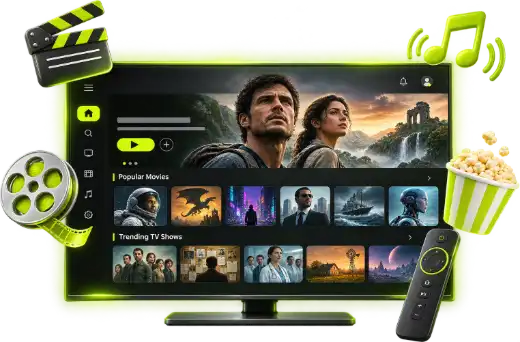
However, your TV needs a compatible operating system and a suitable app version. A smart TV label alone doesn’t mean it can install Android APK files.
For OnStream on Android TV, the first step is checking your device and download source. Competitor websites advertise TV support, subtitles, watchlists, and other viewing features. These claims don’t confirm that every available APK works well with a television remote. This research also couldn’t authenticate a current developer-maintained TV download.
This guide explains compatibility, installation checks, and everyday use on Android TV. You’ll learn how to review an APK before installing it and handle common problems. It also covers updates, remote navigation, and alternatives with clearer distribution channels. Start with your TV’s operating system before choosing any download.
OnStream for Android TV
OnStream download sites describe support for Android televisions and streaming devices. Some also list separate mobile and TV packages, which makes choosing the correct file important. Features and menus can differ between those packages. Treat compatibility claims as something to check against your exact device and app version. onstreamfree.com
What Is OnStream for Android TV?
OnStream for Android TV refers to using the movie and TV-show app on an Android-based television device. It isn’t the same as installing an app on every type of smart TV. You need a compatible package, working playback support, and controls suited to a remote. Without those elements, an app might install but remain difficult to use.
Android TV vs Android Mobile Version
A mobile app usually expects you to tap and swipe a touchscreen. A TV app needs controls you can reach with a remote’s direction buttons. Android’s developer guidance also explains that TV apps need specific settings to appear in the TV interface. This is why installing a phone APK doesn’t guarantee a useful television experience. developer.android.com
Android TV and Google TV Compatibility
Android TV and Google TV devices can run compatible Android television apps. However, app support still depends on the device software and the package’s requirements. Check your model’s settings instead of relying only on its brand name. Two televisions from the same company may use different operating systems.
Features of OnStream for Android TV
The features below explain what matters when using a streaming app on a television. OnStream websites advertise several of these functions, but availability can vary by build. Check the actual app before expecting a specific playback option. Remote support and readable menus matter as much as the size of the catalogue.
Large-Screen Interface
A suitable TV interface keeps posters, menus, and text readable from your seat. It should also make the selected button easy to spot. A stretched phone layout may show tiny controls or waste screen space. Check the home screen and player menus before settling into a movie.
TV Remote Navigation
Remote navigation lets you move through the app using direction, select, and back buttons. A TV-friendly layout should let you reach search, episodes, and playback controls. If the selection gets stuck, the package may not suit your device. Don’t assume remote support simply because the APK installs.
Movie and TV Show Search
Search helps you find a title without scrolling through long lists. Enter the movie name and release year when several results look similar. For a series, check the season and episode before opening playback. Search results alone don’t prove that a working video is available.
Video Quality Options
Video quality settings let you balance picture detail against loading time. A lower setting may help when your connection struggles with a larger stream. Higher quality depends on the source, player, and television’s capabilities. A 4K TV cannot turn a low-quality source into a true 4K video.
Subtitle and Audio Options
Subtitle controls help you follow dialogue in an available language. Audio settings may offer another language when the source includes extra tracks. These options depend on the video and player, so they can vary between titles. Check the playback menu rather than expecting every language to be available.
Watchlist and Playback History
A watchlist keeps titles together so you can find them later. Playback history records what you’ve opened, while resume playback saves a viewing position. These are separate functions, even when an app places them near each other. Don’t assume they will sync with your phone unless that feature is clearly supported.
External Player Support
Some OnStream download pages also promote a separate video player. However, that doesn’t confirm that every TV build supports the same player or requires it. If your app offers a player choice, use one that works with your TV remote. Check subtitle and audio controls after switching players.
Requirements Before Installing OnStream
Your TV needs more than enough room for the APK file. Installation also depends on software compatibility, available storage, and permission to install the package. A working internet connection is needed for online playback. Since a current authenticated TV package wasn’t established, exact minimum specifications should come from the package’s verified publisher.
|
Requirement |
What to check |
Why it matters |
|
Operating system |
Android TV or Google TV |
Other TV platforms don’t directly run Android APKs |
|
Android version |
The package’s stated minimum |
An older system may reject the app |
|
Storage |
Free space beyond the download size |
Installation and app data need additional room |
|
Internet |
A stable connection |
Playback depends on the connection and source |
|
Controls |
Direction buttons, select, and back |
A mobile interface may be difficult to navigate |
|
Download source |
Identifiable publisher and release details |
Helps establish which software you’re installing |
Supported Android TV Version
Check the Android version in your TV’s About settings. Compare it with the requirements for the exact package you plan to install. Don’t apply the mobile app’s requirements to a separate TV build without checking. A newer version number on a download page doesn’t prove compatibility.
Available Storage Space
Keep enough free storage for installation and ongoing app data. The APK’s download size isn’t the app’s final storage use. Remove unused apps or old files if your television reports low space. Avoid deleting saved data until you know what it contains.
Internet Connection
Use a connection that stays reliable where your TV is placed. Test another streaming app if videos frequently stop to load. This helps you separate a home-network problem from a problem with one service. A faster internet plan alone won’t fix an unavailable video source.
APK Source and App Compatibility
Look for a publisher you can identify and consistent release information. Check whether the file is intended for televisions or touchscreen devices. A website calling itself “official” isn’t enough to establish ownership. If you cannot verify the source, leave the file uninstalled.
How to Download and Install OnStream on Android TV
The following steps explain the process for a compatible APK from a verified source. They aren’t confirmation that a current OnStream download has been authenticated. Your TV’s menu names may vary by manufacturer and Android version. Read each prompt before allowing an installation.
1
Check Your TV Model and Operating System
Open Settings, then find About under System or Device Preferences. Confirm the model, operating system, and Android version before downloading.
2
Find a Verified TV-Compatible APK
Check the publisher, release information, and TV requirements. This research didn’t authenticate a current developer download, so no unverified APK link is provided here.
3
Download or Transfer the APK to Your TV
Use a trusted download or file-transfer method supported by your device. If using USB, confirm that your TV and file manager can read the drive.
4
Allow Installation for the Selected Installer
If prompted, allow Install unknown apps only for the app opening the package. Android 8 and later use permissions tied to individual installation sources. Branding & Marketing
5
Install and Open the App
Select the APK and review the installation prompt. If installation fails, check compatibility and file integrity before attempting another download.
6
Review Permissions and Complete Setup
Open the app and review any permissions it requests. Turn off the installer’s unknown-app permission afterward if you no longer need it.
How to Use OnStream on Android TV
Begin by checking whether the remote can reach every main menu. Confirm that search, title pages, and the back button work before starting playback. The exact controls depend on your installed build. Use the following checks to understand the options it actually provides.
Browse and Search for Titles
Open search or browse the available categories. Check the title, release year, and description before selecting a result. For TV shows, choose the correct season and episode. If a listing won’t play, try another title before changing device settings.
Check Available Playback Options
Open the title page and look for its playback choices. Some builds or sources may offer more than one option. Test the available controls for pause, seeking, and returning to the previous screen. Don’t treat a missing playback button as proof that your TV needs another installer.
Adjust Video Quality and Subtitles
Open the player’s settings while the video is running. Choose a suitable quality level if the player offers that control. Select an available subtitle or audio language when needed. Check that subtitles match the dialogue before continuing.
Manage Your Watchlist
Use the save or favourite option if your build includes one. This can make a series easier to find next time. Remember that saving a title doesn’t download its video. Keep a separate note of important titles before clearing app data or uninstalling.
How to Update OnStream on Android TV
Check for an update through the same verified publisher used for installation. Compare the release details and confirm that the package still supports your TV. If Android rejects the update, investigate the error before removing your existing app. Uninstalling may delete settings, history, or saved items.
1
Check release information
Look for clear version details and changes relevant to your TV.
2
Download the compatible package
Avoid replacing a TV build with a mobile APK by mistake.
3
Open the update file
Proceed only if the installation prompt matches the app you intend to update.
4
Test essential controls
Check navigation, playback, subtitles, and saved items afterward.
Common OnStream Android TV Problems and Fixes
Start by checking whether the problem affects one title, one app, or the whole TV. That distinction can prevent unnecessary changes. For example, a broken video link won’t be repaired by clearing every app’s data. Try one change at a time so you can tell what helped.
APK Not Installing
Check free storage and the package’s Android requirements first. A damaged download or incompatible package can also prevent installation. Read the exact error instead of repeatedly downloading the same file. Don’t disable security protection simply to force an installation.
App Not Appearing on the Home Screen
Check Settings → Apps to see whether the app installed. Android explains that an app without the required TV launcher entry may not appear in the TV interface. This can happen when a mobile package is installed on a television. A missing icon therefore doesn’t always mean the installation failed. developer.android.com
App Crashing or Not Opening
Restart the TV and check for available app and system updates. Try force-stopping the affected app before opening it again. Clearing its data is a later option because it removes stored information. Google’s troubleshooting guidance includes these steps when a Google TV app keeps crashing. Google TV Help
Remote Navigation Not Working
Check whether the remote works normally on the TV home screen. If it does, the problem may be limited to the app’s layout. A phone-focused package can include controls that expect touch input. Use a TV-compatible build when available instead of assuming a replacement remote will solve it.
Videos Buffering or Not Playing
Test another title and another streaming service. If both services struggle, check your network and restart the TV or router as needed. If only one source fails, the problem may be outside your home connection. Google also recommends checking connectivity and software updates when videos won’t play. Google TV Help
Subtitles or Audio Not Working
Check the player’s selected audio and subtitle tracks first. Try another title to see whether the problem affects a single source. If all TV apps have no sound, check the television’s audio output and connected speakers. Changing apps won’t restore a language track that the source doesn’t contain.
Is OnStream Safe to Use on Android TV?
No untested APK should be described as completely safe. This research did not inspect an OnStream TV package or authenticate its publisher. Check the source, permissions, and update history before installing. A familiar logo or a working video doesn’t prove the software’s safety.
Keep Google Play Protect enabled on supported devices. Google says it can check apps from outside Google Play and warn about harmful software. Those checks reduce risk but don’t guarantee that every app is harmless. Also check that the service has permission to provide the content you plan to watch. Google Play Help
Pros and Cons of OnStream for Android TV
A television can make browsing and shared viewing more comfortable. However, the experience depends on the package and its controls. The benefits below are conditional on a compatible, working build. Consider those limits before spending time on installation.
Pros
✓ Larger screen for viewing
✓ Remote-based use with a suitable TV build
✓ Advertised search and watchlist features
✓ Potential subtitle and player options
✓ Can run directly on compatible Android TV hardware
✓ May offer convenient access to available titles
Cons
✗ Current developer download wasn’t authenticated
✗ Mobile APKs may be difficult to navigate
✗ Features may vary between versions
✗ Source and player compatibility can differ
✗ Doesn’t directly support every smart TV platform
✗ Playback and source availability aren’t guaranteed
Alternatives to OnStream for Android TV
If your priority is straightforward setup, start with services distributed through your device’s app store. Check each service’s regional availability and catalogue before installing. Free services may include advertising or offer different titles in different countries. These options have clearer public descriptions of what they provide.
|
Alternative |
Main use |
What to check |
|
Pluto TV |
Free channels and on-demand entertainment |
Regional availability and supported TV devices |
|
Plex |
Free movies and shows, plus separate personal-media features |
Catalogue, ads, and which features require payment |
Pluto TV describes a service with free channels, movies, and shows. Plex also offers free streaming and lists Android TV among its supported platforms. Neither service guarantees that a particular movie will be available in your country. Search their current catalogues before choosing between them. pluto.tv
Frequently Asked Questions
Conclusion
OnStream for Android TV requires a compatible package and controls that work on a television. Checking the operating system is the first step, followed by checking the download’s identity. This research couldn’t authenticate a current developer-maintained TV release. That limits which installation and feature claims can be treated as confirmed.
If you already have a trusted, compatible package, review permissions and test the remote controls after setup. Handle playback problems one step at a time to avoid losing saved data. Keep security checks enabled and check update details carefully. For a simpler installation route, compare services available through your TV’s app store.